建立腳本集合 (Script Libraries)#
在第一個步驟中,您要建立一個包含個別指令的 script collection。您可以定義每個指令來呼叫特定 Tcl 或 Python 腳本中的特定程序。
此後,各個命令將直接以圖形化方式顯示在 VisualApplets GUI 中,您只需點擊滑鼠或透過拖放即可啟動它們。透過這種方式,您可以將 Tcl 或 Python 程序作為庫元素來使用。呼叫時,命令會在 Scripting Console 中執行。若您開啟 Scripting Console,便能檢視命令的執行過程。
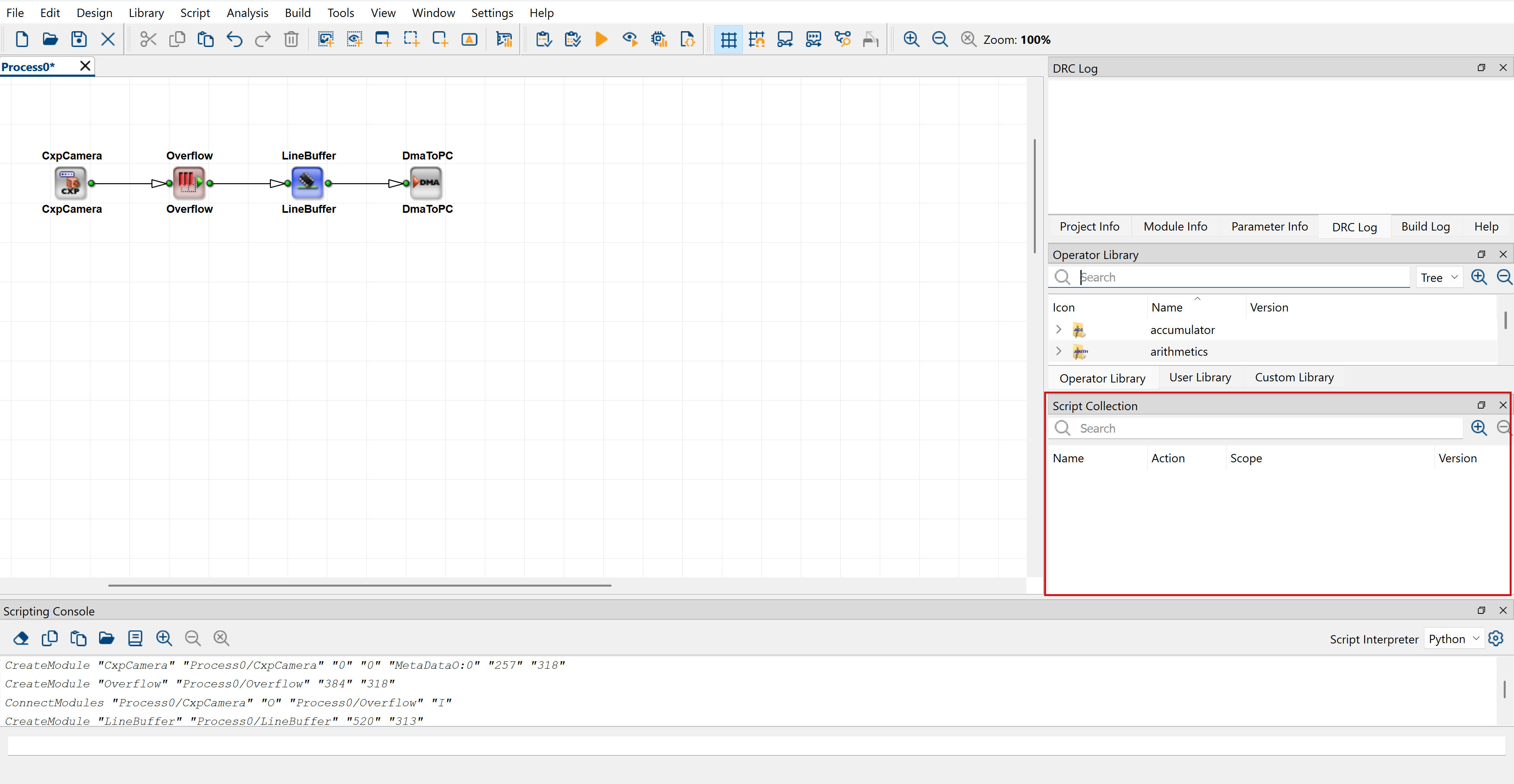
在 Script Collection 窗格中,您可以查看 VisualApplets 安裝中已有哪些腳本集合,以及各個集合中包含哪些命令。
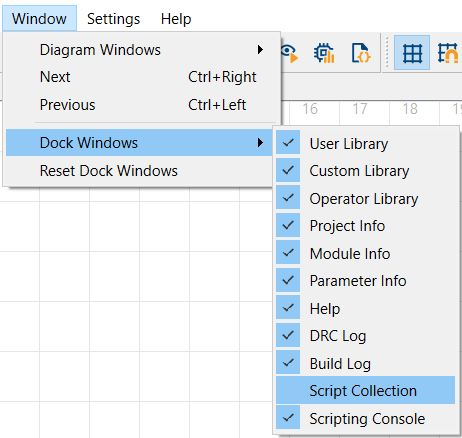
若要開啟 Script Collection 窗格,請開啟 Window 選單,依序選取 Dock Windows 與 Scripting Collection:
Scrip Collection 窗格會開啟於 VisualApplets 主視窗的右側:
您可以透過以下方式定義 script collection:
資訊
VisualApplets 支援以 Python 與 Tcl 編寫的腳本集合。當使用 Python 腳本集合元素時,Scripting Console 會自動切換至 Python,而當主控台設回 Tcl 時則切換回 Tcl。Python 腳本集合會在 Python Version Settings 對話方塊中選為 Active Version 的 Python 環境中執行。如需詳細資訊,請參閱管理 Python 版本。
資訊
將所有 collection 資訊儲存在 XML 檔案中,可讓您不僅對個別腳本,還對 script collections 的結構與內容定義使用版本控制系統。
腳本集合的結構#
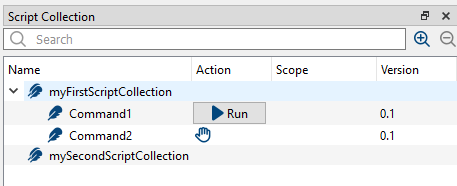
每個 script collection 都包含許多指令(script collection 的元素)。
這會反映在 GUI 中:
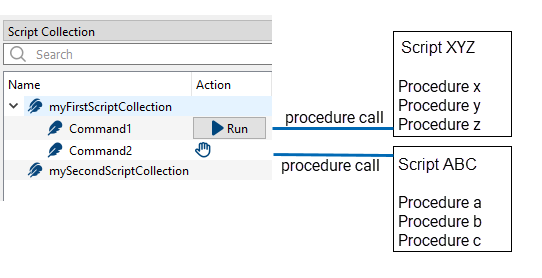
每個指令都指向特定腳本中的一個特定程序。當執行某個指令時,就會呼叫它所指向的程序。
若要定義 script collection,您必須定義:
- Collection 的名稱
- Collection 中包含的指令
- 選填:一些進一步的資訊,例如版本號碼、描述等。
- 選填:代表 script collection 的 GUI 圖示。
- 對於每個個別指令:
- 指令名稱
- 指令所指向的 Tcl 或 Python 檔案
- 此檔案中指令所指向的 Tcl 或 Python 程序
- 必須傳遞至 Tcl 或 Python 程序的引數(從 GUI 啟動指令時會提示所需的值)
- 指令模式(請參閱下方 Adding a Command to a Script Collection)
- 選填:指令範圍(請參閱下方 Adding a Command to a Script Collection)
- 選填:其他資訊,例如版本號碼、描述等。
- 選填:代表該指令的 GUI 圖示(請參閱下方 Adding a Command to a Script Collection)。如果您未提供圖示檔案,GUI 將會使用預設圖示。
描述精確一個指令集的所有列出資訊都儲存在一個 XML 檔案中。
您可以定義多個指令集。
GUI 背後運作的機制#
在背景中,系統會在您為集合定義 XML 檔案所指定的目錄中建立新的 XML 檔案(請參閱 Required Settings):
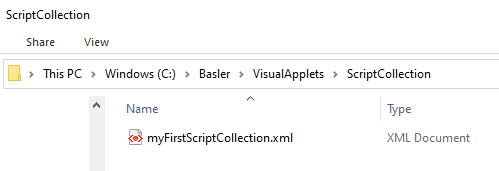
檔案名稱與您在 GUI 中定義的指令集名稱相同。該 XML 檔案包含目前定義的有關該指令集的所有資訊:
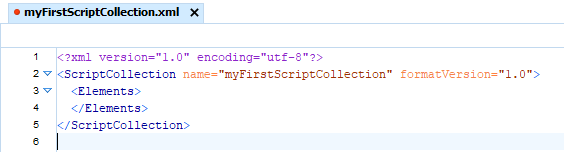
As you haven't specified any commands for your script collection yet, the <Elements> element is still empty.
資訊
若要建立新的指令集,您可以透過 GUI 或從頭建立 XML 檔案。兩者的結果相同。GUI 始終會顯示 XML 檔案中定義的資訊。
命令選項#
在定義指令時,您可以設定該指令是透過按鈕啟動  (即 Trigger Mode)還是透過拖放(Drag & Drop)啟動,GUI 會以手形圖示
 來表示。您也可以為您的指令在工具列中新增一個按鈕。
對於設為 Trigger Mode 的指令,您可以定義 command scope。在指令範圍中,您可以將指令限制在特定的設計元素(例如模組或連結),以便該指令僅適用於這些元素。
要求#
檔案需求#
指令集由下列檔案組成:
- 定義指令集的 XML 檔案。該 XML 檔案包含指令集本身的定義以及指令集中包含的指令定義。
- 包含實際指令碼的 Tcl 或 Python 檔案。這些檔案必須符合下列要求:
- 它們是 Tcl 或 Python 用戶端指令碼。
- 這些檔案僅包含程序。它們不包含在載入指令碼檔案時執行的任何指令。
- 為了避免命名衝突,針對指令 CMD_NAME,請遵循以下命名慣例:
- Command_CMD_NAME
- 將 .tcl 或 .py 檔案儲存在與集合檔案(*.xml)相同的目錄中,或其子目錄中。
- 選填:用於 VA GUI 上的個別集合或命令圖示的 PNG 圖示檔案。PNG 檔案需要符合以下要求:
- 它們必須包含正方形圖片。
- 最低解析度為 16 x 16。
- 將圖示檔案儲存在與集合檔案(*.xml)相同的目錄中,或其子目錄中。如果您未提供圖示檔案,將會使用預設圖示來代表 GUI 中的指令。
資訊
工作指令碼集合所需的全部檔案皆為純文字檔案。這可讓您將指令碼集合定義儲存在版本控制系統中。
必要設定#
您可以在 VisualApplets 中指定指令碼集合定義檔案(XML 檔案)的位置。由於您只能為集合指令碼檔案定義一個儲存位置,Basler 建議將所有定義集合的 XML 檔案儲存在同一個目錄中。
若要設定指令碼集合目錄的路徑:
- 從 Settings 功能表中,選取 System Settings。
- 選取 Paths 標籤頁。
- Under Script Collection, specify the path to the directory where you store the collection-defining XML files you want to use. The default setting is <VA installation directory>/ScriptCollection:

對於您透過 GUI 建立的每一個 Script Collection,都會在指定的目錄中寫入一個 XML 檔案。如果您將新的集合描述 XML 檔案新增至該目錄,或編輯儲存在該處現有的 XML 檔案,您可以使這些變更在 VisualApplets GUI 中生效。若要在不重新啟動 VisualApplets 的情況下顯示您的變更,請在 Script Collection 窗格中按一下滑鼠右鍵,然後選取 Rescan Script Collection Directory。
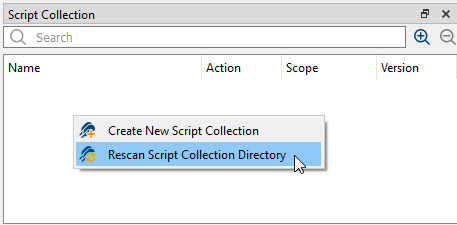
透過 GUI 建立腳本集合#
您可以完全透過 GUI 定義指令碼集合,而無需修改底層的 XML 檔案。XML 檔案會在背景建立和更新。只要您定義了集合和包含的命令,該集合就會顯示在 VisualApplets GUI 中。
建立新的腳本集合#
若要透過圖形使用者介面建立新的指令碼集合:
- 在 Script Collection 窗格上按一下滑鼠右鍵。
-
從內容功能表中選取 Create New Script Collection。
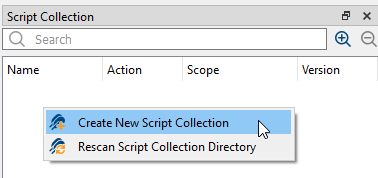
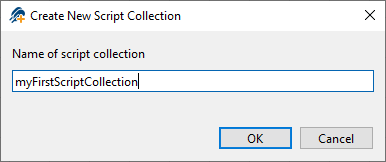
將會開啟一個對話方塊。
-
請輸入新指令碼集合的名稱,並按一下 OK 確認。
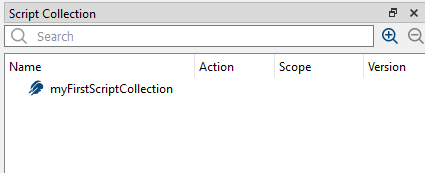
新集合將顯示在 Script Collection 窗格中:
將命令新增至腳本集合#
若要透過 GUI 將命令新增至指令碼集合:
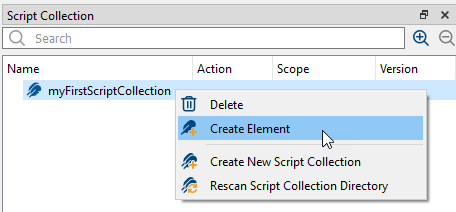
- 在指令碼集合的名稱上按一下滑鼠右鍵。
-
從內容功能表中,選取 Create Element。
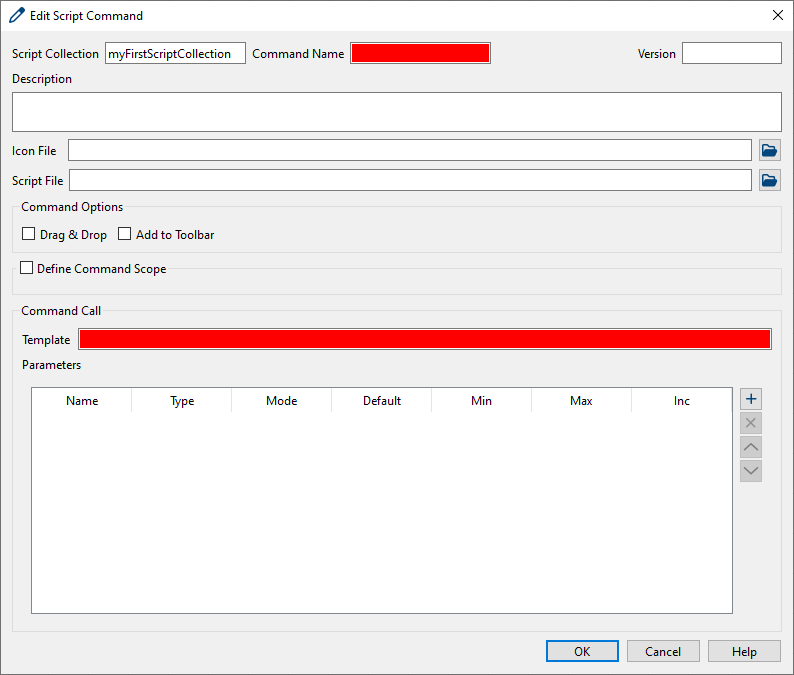
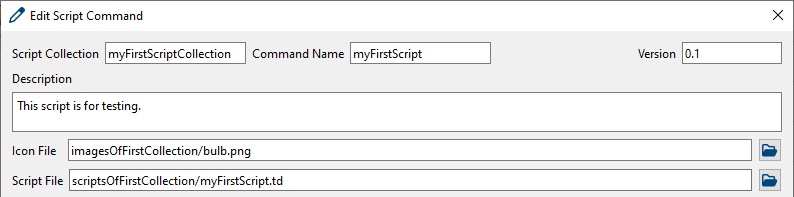
將會開啟一個對話方塊,用於描述您想要新增的命令。以紅色突顯的欄位為必填欄位:
-
Command Name(必填):為您的指令命名。
- Version:您可以為您的指令提供版本資訊。
- Description:描述將以工具提示資訊的形式顯示。請輸入指令將呼叫之程序的描述。
- Icon File:如果您希望在 Script Collection 窗格或工具列中顯示特定的指令圖示,可以在此提供圖示檔案的路徑。您可以設定絕對路徑,或是相對於集合檔案(*.xml)的路徑。(詳情請參閱 File Requirements)。如果您未選取圖示檔案,則會使用預設圖示在 GUI 中代表您的新指令。
-
Script File:提供包含您希望透過該指令啟動之程序的指令碼路徑與名稱。您可以定義相對於集合檔案(.xml)的路徑。或者,您也可以直接在指令中輸入 Tcl 或 Python 程序,而不要定義包含該指令所要呼叫之程序的指令碼檔案。直接在指令中定義的 Tcl 或 Python 程序將會在每次呼叫該指令時執行。如果您偏好此選項,請將 Script File 欄位留空,並在 Command Call 下方的 Template 欄位中提供指令所代表的完整 Tcl 或 Python 程序。
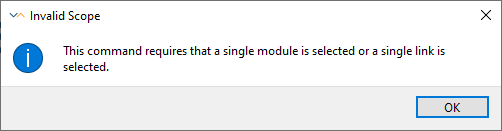
如果您試圖在未選取被定義為指令範圍的設計元素之情況下執行指令,將會開啟 Invalid Scope 訊息:
-
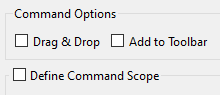
Command Options:定義您希望如何在 VisualApplets GUI 上啟動指令。指令可以透過按一下按鈕(Trigger Mode)或透過拖放至設計視窗中來啟動(Drag & Drop 模式)。如果您使用 Trigger Mode,您可以在程式視窗的工具列中為該指令新增一個額外的按鈕,並定義執行該指令的條件(範圍)。
-
Trigger mode:若要建立一個只要按一下即可啟動指令的按鈕,請清除 Drag & Drop 欄位。該指令將會顯示在帶有 Run 按鈕的 Script Collection 窗格中:
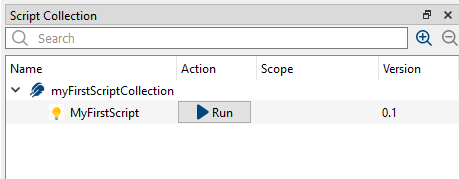
若要開始執行指令,請按一下 Run 按鈕。
-
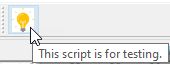
工具列選項(僅限 Trigger mode):若要在 VisualApplets 的工具列中提供該指令:勾選 Add to Toolbar 選項;這只有在您清除 Drag & Drop 核取方塊時才可行。在 GUI 上,系統會為該集合建立一個新工具列,並顯示指令圖示:

按一下工具列中的指令圖示與按一下 Run 按鈕具有相同的效果。您在 Description 下方輸入的文字隨即會作為工具提示顯示在工具列中:
-
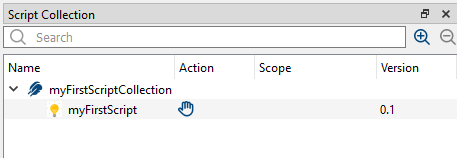
Drag & Drop 模式:如果您希望透過 GUI 上的拖放操作來啟動執行,請選取 Drag & Drop 核取方塊。在此情況下,Action 欄位中會顯示一個手形圖示:
-
-
Define Command Scope (only available in Trigger Mode): If you want to limit the command to a specific design element in the design, select the Define Command Scope check box. This option is only available, if Drag & Drop is disabled.
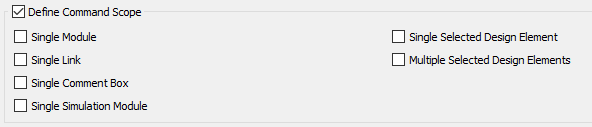
以下選項可用:
- Module: You must select exactly one module to start this command.
- Link: You must select exactly one link to start this command.
- CommentBox: You must select exactly one comment box to start this command.
- SimModule: You must select exactly one simulation module to start this command.
- SingleSelect: You must select exactly one design element to start this command. It's not relevant which kind of element you select (module, link, …).
- MultiSelect: You must select two or more design elements to start this command. It's not relevant which kind of elements you select (module, link, …).
You can combine these options: For example, if you combine the options Module and Link, the command is carried out if you select either exactly one module OR exactly one link. Combining SingleSelect and MultiSelect allows starting the command, if one ore more design elements are selected.
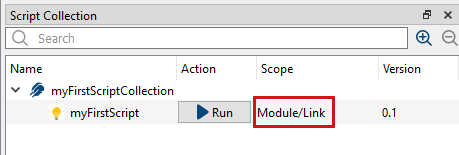
The scope of a command (i.e., the scope of the Tcl procedure) is displayed in the Script Collection pane on the VisualApplets GUI:
如果您試圖在未選取被定義為指令範圍的設計元素之情況下執行指令,將會開啟 Invalid Scope 訊息:
-
Command Call: Define here how the command is called.
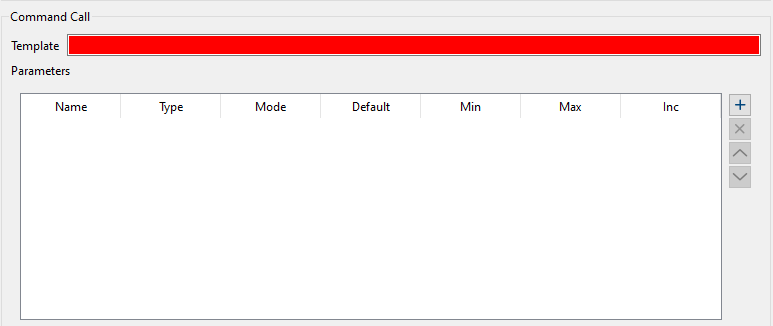
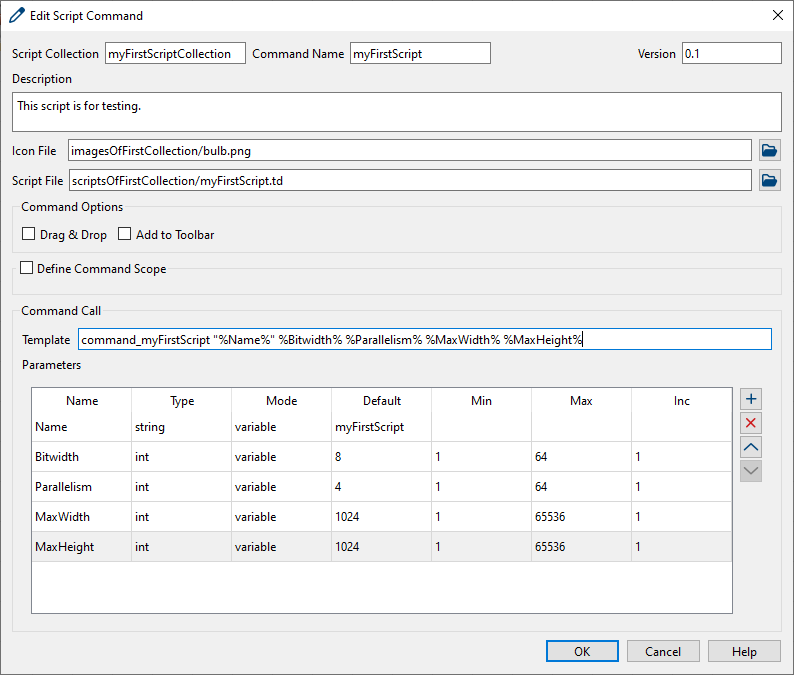
- Template: Enter here the template for the command call. Typically, it starts with the name of the Tcl or Python procedure, followed by a list of parameters. The parameters are given as place holders, wrapped in %. For each place holder you define the according parameter in the list below. Follow the syntax of Tcl or Python commands. Alternatively, you can enter here a complete Tcl or Python console command line if you left field Script File above empty.
- 參數: Define here the parameters used in the template. The order of the parameters listed here is of no consequence. Just ensure that the parameter names match the place holder names of the template. To add a new parameter to the command definition, click the
 plus button.
- Name:為每個參數提供一個名稱。請使用您用於在指令呼叫時帶入數值的引數名稱。
- Type:定義參數的資料類型。您可以定義字串 (string)、整數 (integer) 或倍精確浮點數 (double) 類型的參數。
- Mode:定義您的參數包含固定值、變數還是放置位置 (drop position)。
dropX和dropY提供在拖放期間釋放滑鼠指標時的位置。請注意,dropX和dropY僅在 Drag & Drop 模式下可用。如果您將參數定義為變數,則會在啟動指令時要求您輸入該參數的值。 - Default:在此輸入預設值。
- Min/Max:在此輸入參數的數值範圍。
- Inc:在此輸入數值範圍內的遞增步長。
範例:
透過 XML 建立腳本集合#
您可以完全以 XML 定義 script collection,而無需使用 VisualApplets GUI。
為每個 script collection 建立一個 XML 檔案。
As soon as you have defined a collection and the contained commands in the XML file, the collection is displayed in the VisualApplets GUI. Prerequisite: You have specified the location of the XML files in the System Settings of VisualApplets, see Required Settings.
All information regarding structure and content of a script collection is defined in one XML file per script collection. You can provide multiple XML files, each defining one script collection. If an XML file defining a script collection is located in the directory you specify in VisualApplets under menu Settings -> System Settings -> Paths -> Script Collection, the script collection is displayed in the VisualApplets GUI in the Script Collection pane.
範例#
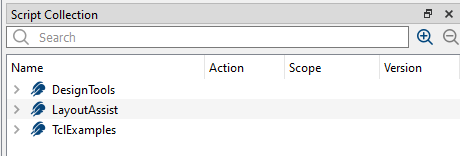
VisualApplets provides the three example script collections DesignTools, LayoutAssist, and TclExamples. You find them as .xml file as well as as .tcl file in the directory <VA installation directory>/Examples/AdvancedVAFunctions/Script Collection.
若要在 VisualApplets 的 GUI 中顯示範例 script collection:
-
Define the path to the folder where the example script collections are stored in Settings -> System Settings -> Paths.

-
Right-click into the Script Collection pane and select Rescan Script Collection Directory.
The GUI now displays the example script collections in the Script Collection pane:
-
您現在可以試玩 GUI 選項和 XML 檔案的內容,以查看您動作的影響。
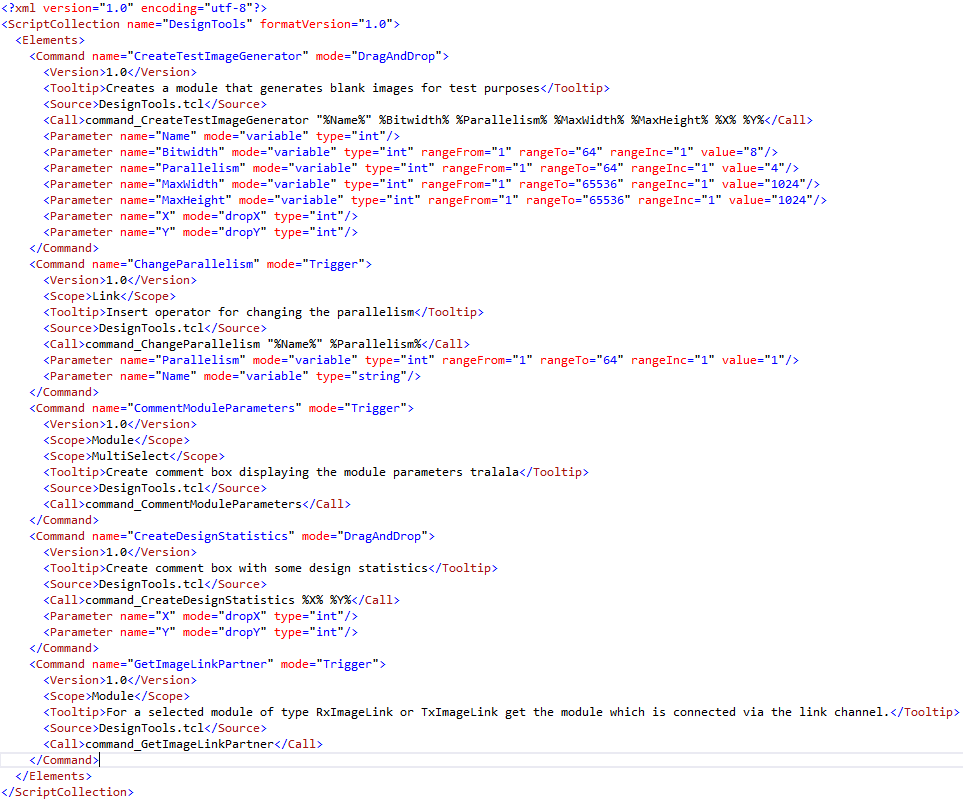
This is how the example DesignTools.xml looks like:
語法#
XML 檔案的語法如下:
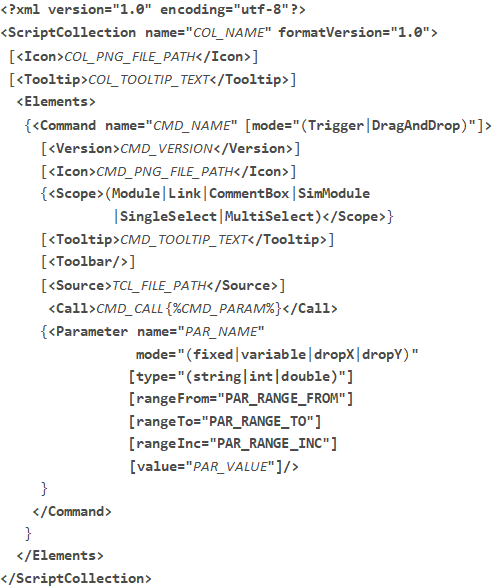
資訊
Make sure you use the same name for the XML file name as in tag <ScriptCollection> of the XML file.
範例:
檔案名稱:
myCollection.xml
XML 檔案中的集合名稱:
<ScriptCollection name ="myCollection" formatVersion="1.0">.
該格式的定義遵循以下慣例:
- 選填,個別元素以方括號 [ ] 包覆。
- 允許不存在、出現一次或多次的語法元素,以大括號 { } 包覆。
- 語法 (..|..) 表示可以指定所提供元素中的其中一個。
- 參數值以斜體大寫字母表示。
The Tags <Scope> and <Toolbar>#
<Scope>:
Use the tag <Scope>, if you want to limit the command to a specific design element in the design.
這是一個選填標籤,僅當您將指令模式設定為 Trigger. You can define <Scope> multiple times to specify multiple scopes. The tag isn't allowed when Command mode 且 DragAndDrop.
以下選項可用:
- Module: You must select exactly one module to start this command.
- Link: You must select exactly one link to start this command.
- CommentBox: You must select exactly one comment box to start this command.
- SimModule: You must select exactly one simulation module to start this command.
- SingleSelect: You must select exactly one design element to start this command. It's not relevant which kind of element you select (module, link, …).
- MultiSelect: You must select two or more design elements to start this command. It's not relevant which kind of elements you select (module, link, …).
You can combine these options: For example, if you combine the options Module and Link, the command is carried out if you select either exactly one module OR exactly one link. Combining SingleSelect and MultiSelect allows starting the command, if one ore more design elements are selected.
如果您試圖在未選取被定義為指令範圍的設計元素之情況下執行指令,將會開啟 Invalid Scope 訊息:
<Toolbar>:
選填標籤,僅當您設定 Command mode 設定為 Trigger時允許使用。如果您包含此標籤,該指令會新增至集合的工具列中。當 Command mode 且 DragAndDrop.
參數#
您必須將下列數值寫入上方圖片中以斜體顯示的參數中:
- COL_NAME:腳本集合的名稱。
- COL_PNG_FILE_PATH:指令碼集合圖示檔案的路徑(PNG 格式,詳細資訊請參閱檔案要求)。請指定相對於 XML 檔案的路徑。
- COL_TOOLTIP_TEXT:顯示為描述腳本集合之工具提示的文字。
- CMD_NAME:指令名稱。
- CMD_TOOLTIP_TEXT:顯示為描述指令之工具提示的文字。
- CMD_VERSION:以 MAJOR.MINOR 格式表示的指令版本(例如 1.0)
- TCL_FILE_PATH:包含您在執行指令時想要呼叫之程序的 Tcl 腳本路徑。請指定相對於 XML 檔案的路徑。
- CMD_PNG_FILE_PATH:指令的圖示檔案(PNG 格式,詳細資訊請參閱檔案要求)。請指定相對於 XML 檔案的路徑。
- CMD_CALL:由指令呼叫的 Tcl 腳本內程序名稱(或完整 Tcl 程序)。
- CMD_PARAM:在呼叫指令時會被實際數值替換的參數名稱(引數)。僅指定定義在下列中的參數名稱
tags。 - PAR_NAME:參數名稱。
- PAR_RANGE_FROM:值範圍的起點(僅適用於 int 或 double 資料類型)。
- PAR_RANGE_TO:值範圍的終點(僅適用於 int 或 double 資料類型)。
- PAR_RANGE_INC:數值範圍內的步長(僅適用於 int 或 double 資料類型)。
- PAR_VALUE:參數的預設值。
將腳本集合載入至 GUI#
針對您透過 GUI 建立的每個指令碼集合,系統都會在您於 Settings → System Settings → Path 下指定的目錄中寫入一個 XML 檔案。如果您將新的集合描述 XML 檔案新增至該目錄,或編輯儲存在該處的現有 XML 檔案,您可以讓您的變更在 VisualApplets GUI 中顯示。若要在不重新啟動 VisualApplets 的情況下顯示您的變更,請在 Script Collection 窗格中按一下滑鼠右鍵,然後選取 Rescan Script Collection Directory。