Workbench總覽#
您無需編寫程式碼,只需從一系列 vTools 中選擇所需的處理步驟,按所需的順序將它們連接起來,然後將其儲存在所謂的 recipe 檔案中。Workbench 還允許您在將 recipe 新增至應用程式代碼之前執行和測試它。
資訊
為確保最佳效能,請檢查您的電腦是否符合 系統需求。
主視窗#
Workbench 選單#
Workbench 選單提供以下指令:
- New Recipe: 建立一個空白的 recipe。
- New from Template: 根據範本建立一個新的 recipe。
- Open Recipe: 開啟現有的 recipe。
- Save: 儲存目前的 recipe。
- Save As: 以其他名稱儲存目前的 recipe。
- vTool Use Cases: 開啟一個資料夾,您可以在其中選擇針對特定使用情境的 recipe。這些 recipe 可直接執行且不需要相機。它們包含合適的範例影像以及應用情境的簡短描述。這些使用情境旨在示範如何解決您自己的視覺任務。
- Recipe Code Generator: 允許您產生範例程式碼,以便在您的開發環境中使用 vTool recipe。
- vTool Licensing: 開啟 Welcome 對話方塊的 vTool Licensing 頁面。
工具列按鈕#
| 圖示 | 功能 |
|---|---|
 | 建立一個新的 recipe。 |
 | 開啟現有的 recipe。 |
 | 儲存目前的 recipe。 |
 | 開啟 Recipe Code Generator。 |
 | 鎖定資源。這表示資源將專門配置給特定的 vTool。某些 vTool(例如 Camera vTool)必須進行此操作,才能存取、設定和儲存設定。 |
 | 解鎖資源。這會釋放先前專門配置給 vTool 的資源。 |
 | 執行 Recipe。 |
 | 停止 Recipe。 |
 | 擷取單張影像。 |
 | 連續擷取影像。 |
 | 開啟 Pin Data 檢視以查看 Recipe 的結果。 |
窗格#
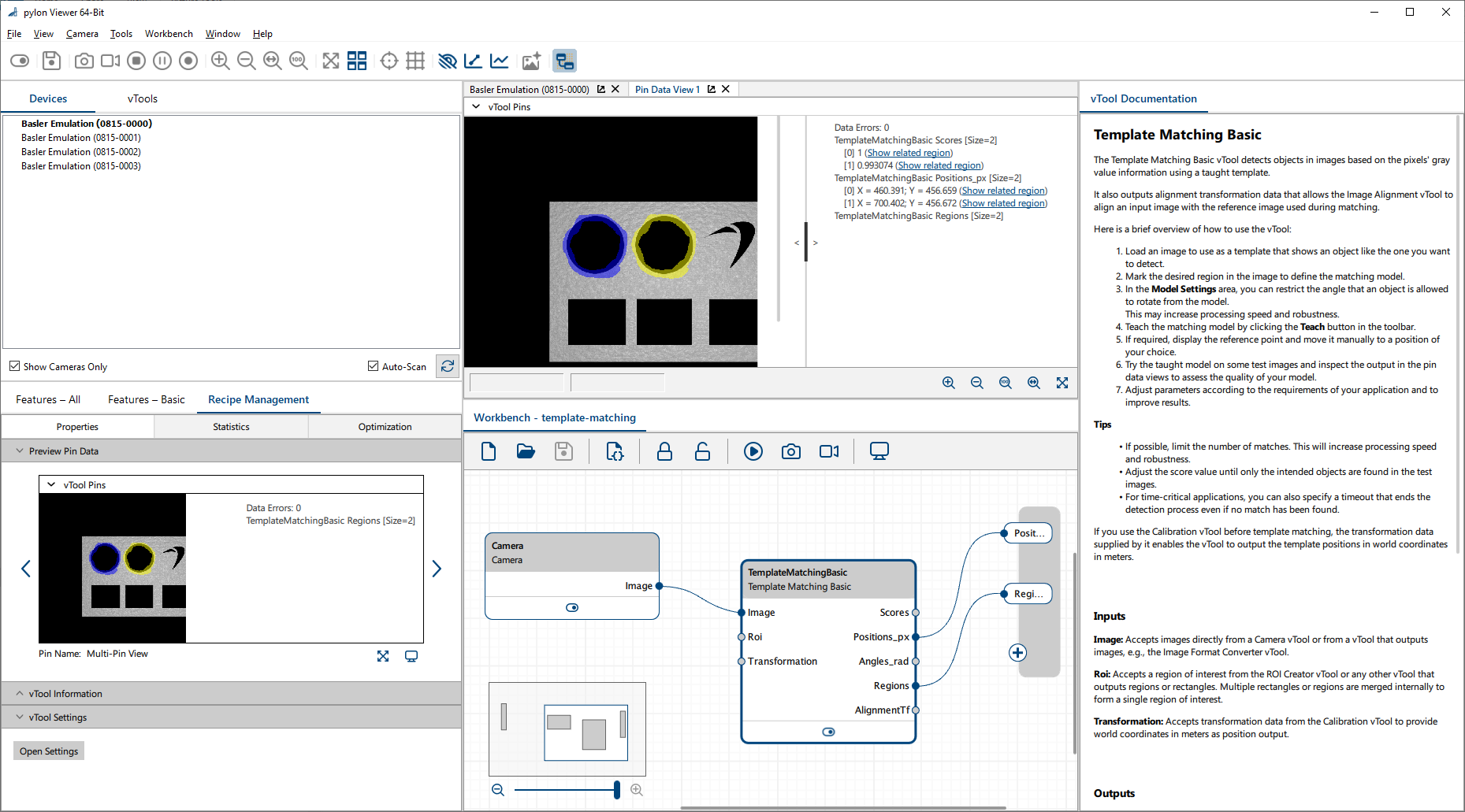
若要開啟和關閉 Workbench 及其窗格,請在 Window 選單中選取或取消選取所需的選項。此外,您也可以使用 pylon Viewer 工具列中的 Workbench 按鈕來開啟和關閉 Workbench 窗格:

Workbench 窗格#
Workbench 窗格是用於建立影像處理設計(即所謂的 Recipe)的地方。您也可以在這裡透過執行 Recipe 來進行測試,並在 pin data 檢視中檢視結果。如需有關如何建立和測試 Recipe 的資訊,請參閱 Working with Recipes 主題。
Workbench 還包含一個稱為迷你地圖的小功能。如果您的 Recipe 包含大量 vTools,則視窗格的大小而定,可能無法完整顯示所有 vTools。在這種情況下,您可以查看迷你地圖,它會顯示位於可見區域之外的任何 vTools。
vTools 窗格#
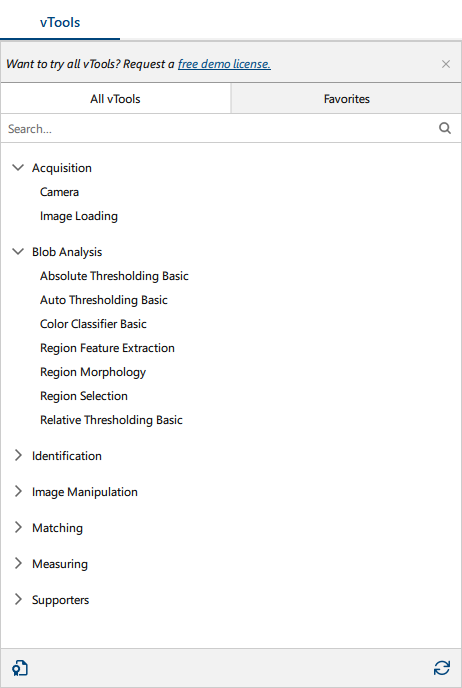
pylon Viewer 中的 vTools 窗格顯示了目前 pylon 版本中包含的所有 vTools. 您沒有授權的 vTools 會以暗顯方式顯示。該窗格還提供一個搜尋列供您尋找特定的 vTool,並允許您定義最愛的 vTools。
vTools 是根據使用情境進行分組的。Supporters 群組包含可用於多種不同使用情境的 vTools。
您可以將滑鼠指向 vTool 並按一下其旁邊的 + 圖示,將其新增至您的 Recipe 中。或者,在 Recipe 中按一下滑鼠右鍵並以該方式選取所需的 vTool。
vTool 文件窗格#
vTool Documentation 窗格會顯示目前在 Workbench 窗格中選取的 vTool 的相關資訊。它提供 vTool 功能的簡要概述,以及其輸入和輸出接腳 (Pins)。
Recipe Management 窗格#
Recipe Management 窗格允許您檢視 vTool 資訊、監控 Recipe 執行狀況,以及對 Recipe 進行調整以提升效能。
它包含以下頁籤與區域:
- Properties tab
- Preview Pin Data 區域
執行 Recipe 時,顯示 Workbench 中目前選取的 vTool 之輸入和輸出資料預覽。 - vTool Information 區域
顯示 Workbench 中目前選取的 vTool 的相關資訊,例如其識別碼和類型。 - vTool Settings 區域
允許您開啟 Workbench 中目前選取的 vTool 之設定對話方塊,您可以在其中進行 vTool 設定。
- Preview Pin Data 區域
- Statistics tab
Allows you to collect statistical data about your recipe and the vTools included in the recipe. - Optimization tab
Allows you to optimize thread handling.
For more information, see Recipe Management.
Pin Data View#
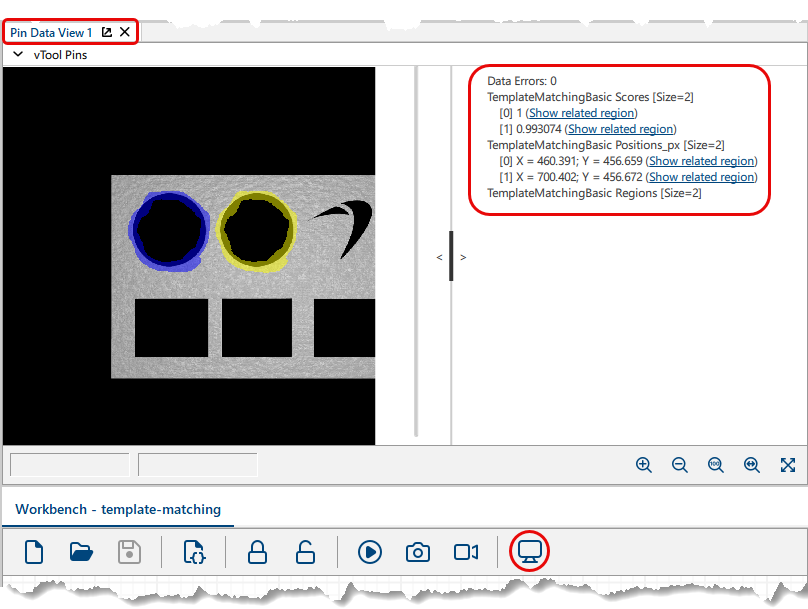
Pin data views show the results of your recipes while you are running them. You can open up to 16 views at the same time and select which pin data to display in each view.
Pin data views are also useful when configuring the vTools. When you're testing your settings on sample images, check the data in the pin data view to verify that the results are as expected.
If there are several results from the same pin, links are provided that allow you to show the region related to that result in the image.
The following screenshot shows a pin data view with the results section highlighted.
To display recipe results in a pin data view:
- Open a pin data view by clicking the Pin Data View button in the Workbench toolbar:
A pin data view opens above the Workbench. - In the pin data view, expand the vTool Pins drop-down list.
- In the list, select the pins whose data you want to display.
- Click vTool Pins again to collapse the list.
- Start the recipe by clicking the 執行 button in the Workbench toolbar:
The results are displayed in the pin data view.