Relative Thresholding vTool#
The Relative Thresholding vTool segments the input image into a region that contains only the pixels with gray values above the threshold and with the polarity specified by you. Use Relative Thresholding to segment small, local features or when it's not possible to define a fixed threshold across the complete image to successfully segment the image, e.g., because the gray values of the background of the image vary greatly.
The Relative Thresholding vTool accepts an image via the Image input pin and outputs a single region via the Region output pin.
If you use the ROI Creator vTool to specify a region of interest before thresholding, the Relative Thresholding vTool accepts the ROI data via its Roi input pin. In that case, thresholding is only performed on the region of interest.
The Region output of the Relative Thresholding vTool can also be used as Roi input for vTools with a Roi input pin. For more information, see the ROI Creator vTool topic.
The Relative Thresholding vTool is available in the Blob Analysis Basic license. To buy a license, visit the Basler website.
運作原理#
The following image shows a typical input image and the corresponding histogram. It shows that the gray value distribution is spread more or less evenly across the whole range. This typically stems from a continuous shading over the complete image.
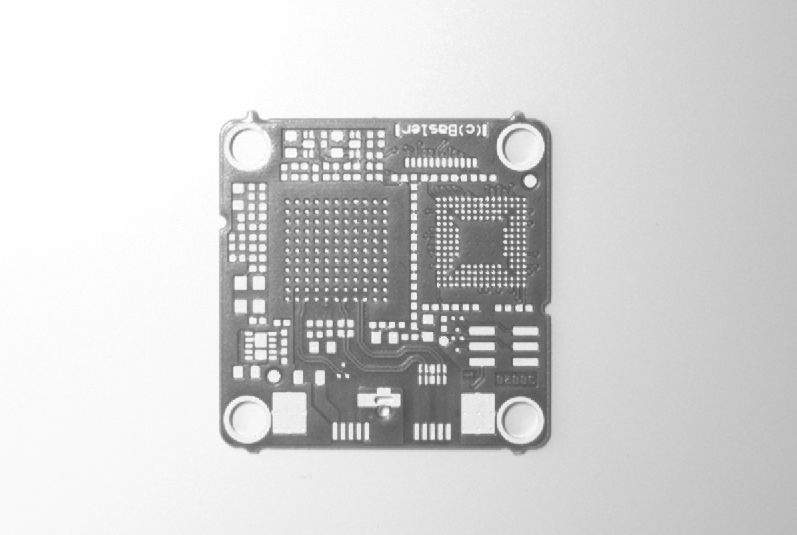
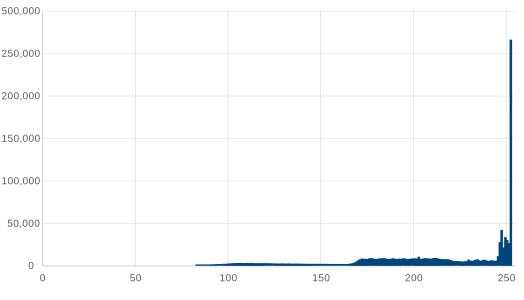
In cases like this, it's not possible to find a suitable threshold to separate the object features from the rest of the image. Generally speaking, the gray values of the desired region are within the same range of gray values as the background region. Therefore, a separation of foreground and background pixels isn't possible.
The relative image employed by this vTool makes the target features more distinguishable. The following image shows the histogram of the relative image. You can see that the gray value distribution is similar to a normal distribution with a mean intensity of zero.
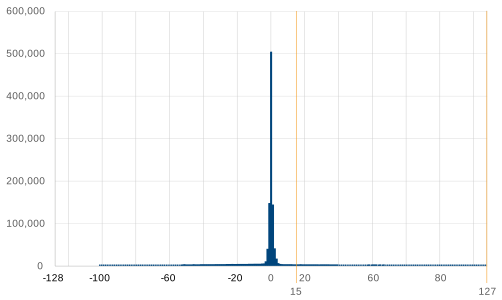
To create the relative image, the input image is smoothed by a square mean filter of the size specified in the vTool's settings. The result is the reference image.
The reference image is subtracted from the input image to create a relative image, which is the basis for segmentation decisions.
The Relative Threshold setting defines the boundaries for segmentation, i.e., the borders in the histogram between the darker to the similar part and between the similar to the lighter part.
The last step is to select a polarity to specify which part of the relative image is included in the output region. The following polarities are available:
- Darker: All pixels with a gray value lower than or equal to the negative threshold value are included in the output region.
- Lighter: All pixels with a gray value higher than or equal to the positive threshold value are included in the output region.
- Similar: All pixels in the central part of the histogram between the negative and the positive threshold are included in the output region.
- Darker of lighter: All pixels at the lower or the higher end of the distribution are included in the output region.
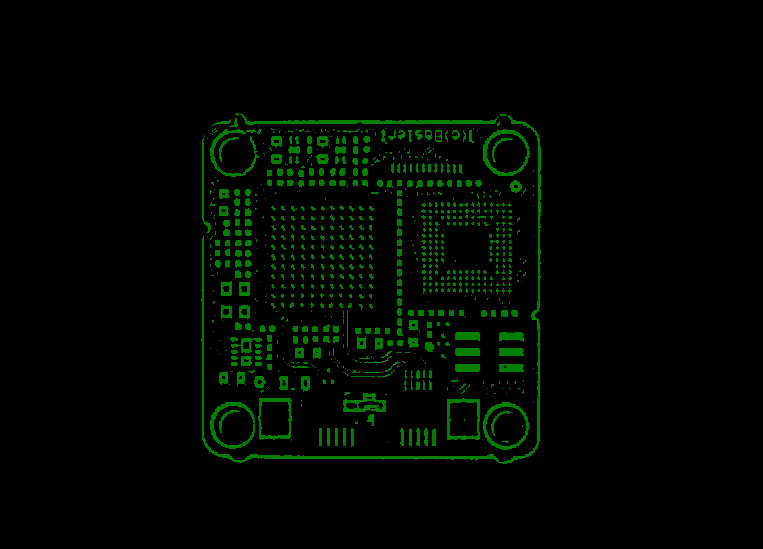
The result for the example image is shown below. The output region contains the desired features of the circuit board. If the result of Relative Thresholding is still noisy, using the Region Morphology vTool as a postprocessing step may help to reduce the noise.
資訊
In order to detect local features, choose a filter size that is approximately three times larger than the smallest dimension of the feature.
If you want to use Relative Thresholding to segment larger objects, which fill more or less the whole image, choosing an appropriate filter size isn't possible. Therefore, you have to start by segmenting the borders of the target object. Afterwards, use the Region Morphology vTool to split the region followed by a region filling.
設定 vTool#
若要設定 Relative Thresholding vTool:
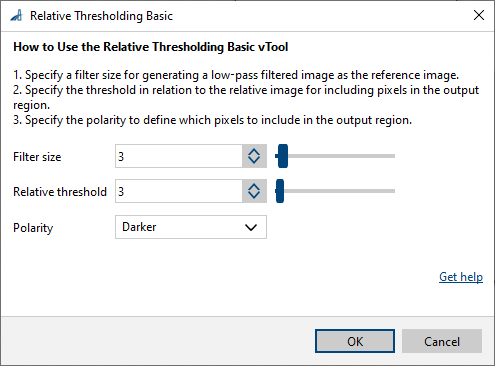
- 在 vTool Settings 區域的 Recipe Management 窗格中,按一下 Open Settings 或按兩下該 vTool。
隨即會開啟 Relative Thresholding Basic 對話方塊。 - 指定用於建立參考影像的濾鏡大小。
- 指定相對閾值。
- 選取所需的極性。
您可以在 pin data view 中檢視閾值處理的結果。在此,您可以選擇要顯示哪些輸出。
Inputs#
Image#
直接接收來自 Camera vTool 或輸出影像之 vTool(例如 Image Format Converter vTool)的影像。
- 資料類型:Image
- 影像格式:8 位元至 16 位元單色或彩色影像。彩色影像會在內部轉換為單色影像。
ROI#
接收來自 ROI Creator vTool 或任何其他輸出區域或矩形的 vTool 的興趣區域 (ROI)。多個矩形或區域會在內部合併,以形成單一興趣區域。
- 資料類型:RectangleF、RectangleF Array、Region、Region Array
Outputs#
Region#
傳回單一區域,其中僅包含灰階值高於閾值且符合您指定極性的像素。
- 資料類型:Region