Scaling#
使用功能#
運作原理#
Scaling 功能引入了一個虛擬感測器平面,可透過 BslScalingFactor 參數。該 BslScaledSensorWidth 進行明確的生命週期管理即呼叫 BslScaledSensorHeight 這些參數表示虛擬感測器的當前大小。
- 較低的縮放因子會增加虛擬感測器的尺寸。
- 較高的縮放係數會使虛擬感測器的尺寸變小。
公式
虛擬感光元件尺寸 = 實體感光元件尺寸 / BslScalingFactor
範例: 假設您的相機感光元件解析度為 2592 x 1944 像素。若您將 BslScalingFactor 若將參數設為 0.5,虛擬感測器的尺寸將是實體感測器的兩倍,即 5184 × 3888 像素。
放大#
若要放大,請將 BslScalingFactor 將參數設定為某個值 低於 大於 1.0。
此舉會增加虛擬感測器的尺寸,而影像的感測區域(ROI)大小與位置則維持不變。
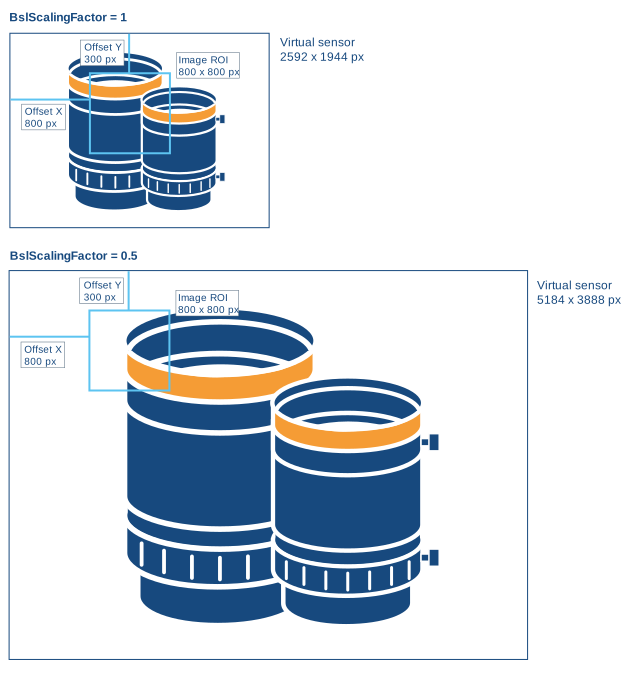
範例: 在以下範例中,該 BslScalingFactor 該參數設定為 0.5。虛擬感測器的尺寸減半,而影像的感測區 (ROI) 尺寸與位置則保持不變。
因此,圖片內容會呈現放大並偏移至左上角的狀態。
拉遠視圖#
若要縮小畫面,請將 BslScalingFactor 將參數設定為某個值 更高 大於 1.0。
此舉可縮小虛擬感測器的尺寸,同時保持影像 ROI的大小與位置不變。
資訊
虛擬感測器的尺寸不得小於影像的感測區域(ROI)。
因此,您可能需要先縮小影像 ROI 的高度與寬度,才能縮小顯示範圍。
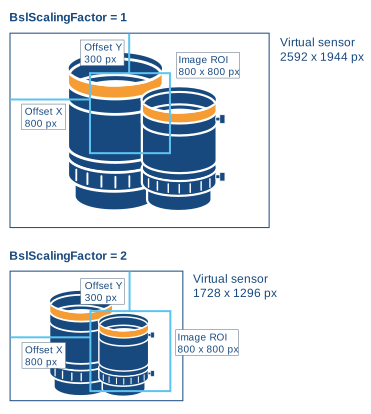
範例: 在以下範例中,該 BslScalingFactor 該參數設定為 2.0。虛擬感測器的大小增加一倍,而影像 ROI 的大小與位置則保持不變。
因此,圖片內容會呈現縮放後的效果,並偏移至右下角。
範例程式碼#
// Set scaling to 0.5, i.e., set the size of the
// virtual sensor to 2x the size of the physical sensor
camera.BslScalingFactor.SetValue(0.5);
// Get the size of the virtual sensor
double scaledWidth = camera.BslScaledSensorWidth.GetValue();
double scaledHeight = camera.BslScaledSensorHeight.GetValue();
// Disable scaling
camera.BslScalingFactor.SetValue(1.0);
INodeMap& nodemap = camera.GetNodeMap();
// Set scaling to 0.5, i.e., set the size of the
// virtual sensor to 2x the size of the physical sensor
CFloatParameter(nodemap, "BslScalingFactor").SetValue(0.5);
// Get the size of the virtual sensor
double scaledWidth = CFloatParameter(nodemap, "BslScaledSensorWidth").GetValue();
double scaledHeight = CFloatParameter(nodemap, "BslScaledSensorHeight").GetValue();
// Disable scaling
CFloatParameter(nodemap, "BslScalingFactor").SetValue(1.0);
// Set scaling to 0.5, i.e., set the size of the
// virtual sensor to 2x the size of the physical sensor
camera.Parameters[PLCamera.BslScalingFactor].SetValue(0.5);
// Get the size of the virtual sensor
double scaledWidth = camera.Parameters[PLCamera.BslScaledSensorWidth].GetValue();
double scaledHeight = camera.Parameters[PLCamera.BslScaledSensorHeight].GetValue();
// Disable scaling
camera.Parameters[PLCamera.BslScalingFactor].SetValue(1.0);
/* Macro to check for errors */
#define CHECK(errc) if (GENAPI_E_OK != errc) printErrorAndExit(errc)
GENAPIC_RESULT errRes = GENAPI_E_OK;  /* Return value of pylon methods */
double scaledWidth = 0;
double scaledHeight = 0;
/* Set scaling to 0.5, i.e., set the size of the */
/* virtual sensor to 2x the size of the physical sensor */
errRes = PylonDeviceSetFloatFeature(hdev, "BslScalingFactor", 0.5);
CHECK(errRes);
/* Get the size of the virtual sensor */
errRes = PylonDeviceGetFloatFeature(hdev, "BslScaledSensorWidth", &scaledWidth);
CHECK(errRes);
errRes = PylonDeviceGetFloatFeature(hdev, "BslScaledSensorHeight", &scaledHeight);
CHECK(errRes);
/* Disable scaling */
errRes = PylonDeviceSetFloatFeature(hdev, "BslScalingFactor", 1.0);
CHECK(errRes);
# Set scaling to 0.5, i.e., set the size of the
# virtual sensor to 2x the size of the physical sensor
camera.BslScalingFactor.Value = 0.5
# Get the size of the virtual sensor
scaledWidth = camera.BslScaledSensorWidth.Value
scaledHeight = camera.BslScaledSensorHeight.Value
# Disable scaling
camera.BslScalingFactor.Value = 1.0
您也可以使用 pylon Viewer 輕鬆設定參數。