Color Transformation#
透過色彩轉換矩陣,此功能可校正影像擷取期間所使用之光源所造成的色偏,並補償感光元件色彩產生過程中的瑕疵。
資訊
除非您非常熟悉矩陣色彩轉換,否則不應使用此功能。透過反覆試驗幾乎不可能在轉換矩陣中輸入正確的值。
使用功能#
設定 Color Transformation#
- 請確保已適當設定 white balance。
- 將相機中的
ProcessedRawEnable參數設為true(若適用 如果您使用的是 Bayer 像素格式)。 - 將相機中的
LightSourcePreset參數設為Custom(若適用)。 - 將相機中的
ColorTransformationValueSelector參數設為所需的 矩陣中的位置,例如:Gain00. - 輸入所需的數值以用於
ColorTransformationValue用於調整所選位置數值的參數。此參數的數值範圍為 -8.0 至 +7.96875。
資訊
轉換矩陣已填入 Color Transformation 值。這些值與先前選取的 Light Source Preset 相關、對應至單位向量,或是先前使用 Color Transformation 功能的結果。
ColorTransformationMatrixFactor 參數
此參數僅適用於具有 GigE 介面的 ace Classic/U/L 相機,用於決定色彩矩陣影響色彩數值的程度。若設定為 0,則矩陣實際上會停用。Basler 建議維持預設設定 (1)。
運作原理#
Color Transformation 功能使用轉換矩陣為每個像素提供修改後的紅色、綠色和藍色像素資料。
轉換是透過包含 R、G 和 B 像素值的 3 x 1 矩陣左乘包含 Color Transformation 值的 3 x 3 矩陣來執行:
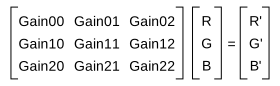
您可以根據您的需求設定每個矩陣值 (Gain00、Gain01 等)。
外部連結#
範例程式碼#
// Select position Gain00 in the matrix
camera.ColorTransformationValueSelector.SetValue(ColorTransformationValueSelector_Gain00);
// Enter a floating point value for the selected position
camera.ColorTransformationValue.SetValue(1.5625);
// Select position Gain01 in the matrix
camera.ColorTransformationValueSelector.SetValue(ColorTransformationValueSelector_Gain01);
// Enter a floating point value for the selected position
camera.ColorTransformationValue.SetValue(-0.4375);
INodeMap& nodemap = camera.GetNodeMap();
// Select position Gain00 in the matrix
CEnumParameter(nodemap, "ColorTransformationValueSelector").SetValue("Gain00");
// Enter a floating point value for the selected position
CFloatParameter(nodemap, "ColorTransformationValue").SetValue(1.5625);
// Select position Gain01 in the matrix
CEnumParameter(nodemap, "ColorTransformationValueSelector").SetValue("Gain01");
// Enter a floating point value for the selected position
CFloatParameter(nodemap, "ColorTransformationValue").SetValue(-0.4375);
// Select position Gain00 in the matrix
camera.Parameters[PLCamera.ColorTransformationValueSelector].SetValue(PLCamera.ColorTransformationValueSelector.Gain00);
// Enter a floating point value for the selected position
camera.Parameters[PLCamera.ColorTransformationValue].SetValue(1.5625);
// Select position Gain01 in the matrix
camera.Parameters[PLCamera.ColorTransformationValueSelector].SetValue(PLCamera.ColorTransformationValueSelector.Gain01);
// Enter a floating point value for the selected position
camera.Parameters[PLCamera.ColorTransformationValue].SetValue(-0.4375);
/* Macro to check for errors */
#define CHECK(errc) if (GENAPI_E_OK != errc) printErrorAndExit(errc)
GENAPIC_RESULT errRes = GENAPI_E_OK;  /* Return value of pylon methods */
/* Select position Gain00 in the matrix */
errRes = PylonDeviceFeatureFromString(hdev, "ColorTransformationValueSelector", "Gain00");
CHECK(errRes);
/* Enter a floating point value for the selected position */
errRes = PylonDeviceSetFloatFeature(hdev, "ColorTransformationValue", 1.5625);
CHECK(errRes);
/* Select position Gain01 in the matrix */
errRes = PylonDeviceFeatureFromString(hdev, "ColorTransformationValueSelector", "Gain01");
CHECK(errRes);
/* Enter a floating point value for the selected position */
errRes = PylonDeviceSetFloatFeature(hdev, "ColorTransformationValue", -0.4375);
CHECK(errRes);
# Select position Gain00 in the matrix
camera.ColorTransformationValueSelector.Value = "Gain00"
# Enter a floating point value for the selected position
camera.ColorTransformationValue.Value = 1.5625
# Select position Gain01 in the matrix
camera.ColorTransformationValueSelector.Value = "Gain01"
# Enter a floating point value for the selected position
camera.ColorTransformationValue.Value = -0.4375
您也可以 use the pylon Viewer 來輕鬆設定參數。